More ePortfolio Graphs

February 5th, 2010

I was motivated to try and visually represent what I had written in a post in the ePortfolios in NZ Google Group thread. Here’s some of what I said:

“…Your example of scanning learning and now moving towards HTML templates illustrates this. Over time you also want or need to readdress your criteria, purpose and vision, especially if you are in a scenario where other classes are using paper. It is more than likely that your views and thoughts are expanding at the same time as your understanding grows due to an increased awareness of the technology capability, student/teacher capability and allignment to learning, and much more rapidly than for those with paper based portfolios…”

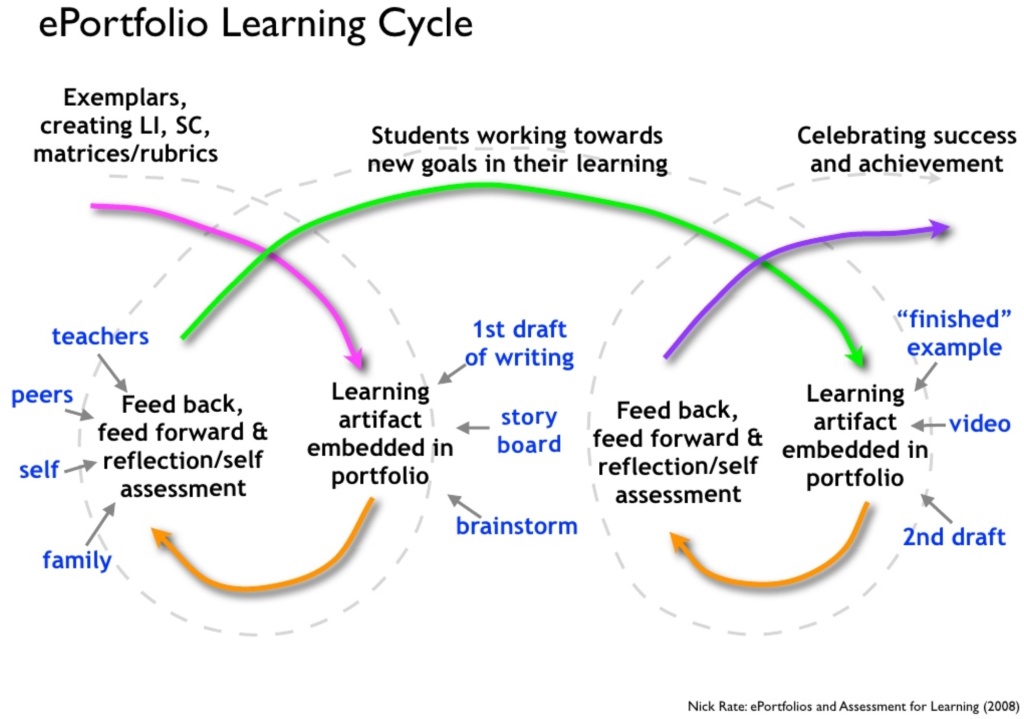
The attempt to visualise this into another eportfolio graph is below. The basic idea being that the more experienced you are in implementing eportfolios the more dynamic they are due to the teacher continually refining and developing the implementation.

Not rocket science really. The second graph below includes a reference to paper based portfolios. There are probably a few people who don’t agree with my view here that there are generally a static document in terms of how they change over time…

The graphs aren’t perfect and the terminology is not quite right. As with most posts in this blog I am just unpacking and reflecting on ideas running around in my head.

It is pretty full at the moment as there are two more graphs brewing. One is to try and show the relationship between the ownership and formative nature of an eportfolio and the other the place of feedback in a portfolio within the bigger picture of learning.

I get a lot of inspiration from Jessica Hagy who’s site thisisindexed.com is full of great visual representations of life and thinking relationally. I would love to be able to create such simple graphs that are yet so informative. Here’s an example:

Nick ePortfolios ,

ePortfolios in NZ

February 5th, 2010

Jamin Lietz has initiated a thread in the MLE Google Group entitled ePortfolios in NZ.

He notes the purpose of the group:

It is my desire to establish a network with those who are using ePortfolios this year as a tool to enhance teaching and learning. I hope that together we can share good practice, research findings, our  journey, etc.

I would encourage anyone to dive on in there and participate in the ongoing discussions.

Some notable eportfolio personnel have participated already including Dr Helen Barrett, the global eportfolio guru, and Ian Fox the local NZ portfolio legend.

Thanks Jamin!

Nick ePortfolios , , , ,

The Non Negotiables

February 3rd, 2010

Late last year I read with interest a post by Dorothy Burt titled eTools – As Basic as Breathing. This post described the the expectations of what new teachers at Pt England need to know:

But to function effortlessly in the 2010 environment we WILL presume the following:

All our teachers are able to:

  • check an email account daily and manage it efficiently
  • use a computer or laptop and trouble shoot basic functions ie on/off, connect to printer, connection to internet
  • use the internet to search, find information and to communicate
  • particpate in online environments eg blogs or forums or Nings or Trademe or Facebook etc
  • manage music files in software eg in iTunes
  • manage photo files using software
  • download photos from a camera
  • use a word processing document efficiently
  • store and retrieve data from a hard drive eg your computer
  • access Google Docs
  • edit a short video clip using simple software

Dorothy continues on with of a list of skills teachers would need to learn, with support, as quickly as possible. Included here are such things as using presentation software, administering a blog, using Google Apps… the list continues.

I would encourage you to read this post and apply it to your own situation in your school. What would your non negotiable elearning requirements be?

Soon after reading Dorothy’s post I read this one from Kim Cofino titled Making the Implicit Explicit. Kim (who is soon to begin a new position at Yokohama International School where I coincidentally used to work), describes skills that are often taken for granted but are incredibly important, yet as she mentions often unidentifiable:

  • knowing to hold your mouse over an icon or a link to see what it does.
  • understanding that the menus for any program are at the top of the screen, that they are usually very similar, and generally what you find within them (for example: “view” usually means how you see things on the screen and that menu is found in almost every program).
  • recognizing when something is lit up (or underlined) on a website, you can click on it.
  • knowing that the cursor changes when held over different parts of the screen and what that means (the little arrow turning into a hand over a weblink for example, or being able to stretch out a picture when it turns into the double-sided arrow).
  • using tab to move from cell to cell or box to box on forms or websites.
  • being able to recognize drop-down menus – and that they hold additional features.
  • understanding that right clicking on things brings up more options.

We don’t need a list of skills for each application, or checklist that ensures we have taught how to change the font in Word or add a transition in Powerpoint. What we need to be doing is to reinforce these elearning operational concepts. In other words, arm teachers and students with a transferable skill set that enables them to better navigate their way online and in applications to solve problems and perform tasks independently. I still have conversations with teachers who want checklist of what skills students should know at the end of a particular school year. I have always been opposed to a prescribed list of skills that end up dictating what is taught to students rather than the learning driving the use of the technology. I remember buying a computing skills checklist back in early 2000, developed by another school in NZ. I came across it just the other day, unused, but such an interesting read!

Jill Hammonds, one of my colleagues at CORE, often discusses the need to do aware with a lot of the how-to workshops that are often prevalent in ICT professional development. These instead are replaced with 2 or 3 sessions that teach the operational concepts/skills required in order for teachers and students to successfully explore, problem solve and teach themselves. It makes sense really and as Kim mentions in her initial list, menus in screens are very similar in all common software packages.

Having an hour long PD session on learning how to use an application or online tool is an overkill. I would be the first to admit that I have done this myself many times. Instead, giving taster sessions to teachers on various etools, showing them what can be possible, combined with the focused teaching of computer operational concepts and skills that are transferable across applications and platforms, is time better spent. Quality time can then be spent on the pedagogy required to integrate these tools effectively into teaching and learning.

For all those little tricky bits and time saving short cuts in applications, nothing beats the the notion of just-in-time learning and ongoing networking of ideas between the staff and in their PLNs.

The follwoing flowchart cartoon, embedded into Kim’s post, reinforces this notion beautifully.

Thanks Dorothy and Kim for both of your respective posts. The combination of the two will initiate many good discussion amongst the principals and facilitators I work with.

Checklist photo courtesy squeaky482 on flickr.

Nick 21st Century Skills, eLearning , , , ,

Lenva Shearing on ePortfolios

February 3rd, 2010

Anyone in NZ investigating eportfolios will know the name Lenva Shearing, DP at Bucklands Beach Intermediate School.

Watch her discussing the eportfolio as a personal space for learning on Edtalks:

More eportfolio Edtalks can be found below:

Nick ePortfolios , , ,

Replacing the iMac Hard Drive

January 14th, 2010

I had a terrible moment last week when I turned on my iMac, an audible clicking and humming that got progressively worse. On top of that, there was no familiar Apple logo, instead a flashing folder icon with a question mark… no hard drive found!

Thankfully, just the week before I had purchased a new 1TB Western Digital network drive, compatible with Time Machine, so I knew I had a full backup.

So the question now was, do I replace the hard drive myself or take it to the shop? Always up for a challenge, I ordered an replacement 500GB drive for NZ$86 and jumped onto YouTube to see if any one had posted a how-to movie. Thankfully they had, there were a couple of excellent video walk throughs for replacing hard drives on a 20″ or 24″ iMac. Apple also provide an instructional DIY pdf. My model is a 20″ Late 2006 iMac, the last before the aluminum models came out.

Replacing iMac hard driveSo feeling pretty confident, the hard drive arrived and I got stuck in, only to discover that once I had the casing off and the LCD ready to come out, that my model iMac was different to both of those in the how-to videos and the Apple instructions.

The major differences are that the hard drive is located in the middle left side rather than the middle top, and that the LCD is connected with 3 cables (2 on the left and 1 at the bottom) rather than just 2.

So a few carefully considered cables detached and screws undone, the hard was replaced in no time at all. A Time Machine restore is happening as I type.

So the lesson to be learned is, back-up your data and back-it up frequently. If you own an Apple and are not using Time Machine, you should be. Hard drives can and do fail at any time.

Lesson number 2 is that DYI hard drive replacement is relatively easy in an iMac. Save yourself some dollars and give it a go.

Nick Hardware , ,

Forget the 4R’s…

January 14th, 2010

© 2010, J, McKenzie, all rights reserved.

Now we have the 13 I’s for the 21st Century competencies in the latest from Jamie McKenzie in the January edition of FNO.

Reading, wRiting, aRithmetic & Reasoning

“It [the 4Rs] was a user friendly way to focus on the basics. With all the talk now of 21st Century Skills, we need a model that is equally user friendly – just the right number of prime thinking competencies to fit on a handy bookmark or poster to remind all teachers and students about core values. My bookmark offers thirteen competencies, all beginning with the letter “I” – a Baker’s Dozen”

Jamie Mackenzie has published many articles in educational technology. If you do not already subscribe to FNO, maybe you should consider it.

Bookmark and quote © 2010, J. McKenzie 2010, all rights reserved. Schools may make copies of bookmark for use with students at no cost. Any other group must write for permission.

Nick 21st Century Skills , , ,

Summer Reading

January 11th, 2010

If you are anything like me you have a folder on your laptop containing numerous readings, research reports and other publications just waiting for you to find the time to read them.

Here are some of the current contents of that folder, some summer reading for you before the new school year starts again.

eLearning/21st Century Learning:

The impact of digital technology: A review of the evidence of the impact of digital technologies on formal education. BECTA. “There is now a growing body of national and international evidence demonstrating the positive impact of digital technologies on measurable learning outcomes…”

The Future of Learning Institutions in a Digital Age. Cathy Davidson and David Goldberg. “Modes of learning have changed dramatically over the past two decades—our sources of information, the ways we exchange and interact with information, how information informs and shapes us. But our schools—how we teach, where we teach, who we teach, who teaches…”

The MILE Guide: Milestones for Improving Learning & Education. Partnership for 21st Century Skills. “The MILE Guide helps districts determine where they are on the spectrum of 21st century skills integration and then use that information to plan a path for future work that brings 21st century skills in their systems of learning.”

Evaluation of Evidence-Based Practices in Online Learning. US Dept. of Education. “Online learning—for students and for teachers—is one of the fastest growing trends in educational uses of technology.”

School libraries building capacity for student learning in 21C. Foley and Hay. “An effective school library contributes to the school’s program for integrating the development of information literacy and digital literacy…”

The Pedagogy Strategy – Learning in an online world. MCEETYA. “Pedagogies that integrate information and communication technologies can engage students in ways not previously possible, enhance achievement, create new learning possibilities and extend interaction with local and global communities.”

Equipping Every Learner for the 21st Century. CISCO. “Although the vision is global, the path to 21st century education requires a local journey; one that recognizes and responds to specific challenges and opportunities.”

mLearning:

iPod Touch Research Report. Department of Education, Early Childhood Development., Victoria. “Primary school children today use mobile portable devices as a matter of course in their lives outside school. While the gap between technology devices used in everyday life and those used in schools continues to widen, many schools have decided to trial mobile devices in an effort to keep pace with emerging technologies.”

Pockets of Potential: Using Mobile Technologies to Promote Children’s Learning. Carly Shuler. “Pockets of Potential argues that despite legitimate public concern about the “disruptive track record” of mobile devices in schools, there is reason to be excited about their potential.”

Professional Learning:

Evaluating Professional Development. Thomas R Guskey. “Using five critical levels of evaluation, you can improve your school’s professional development program. But be sure to start with the desired result – improved student outcomes.”

Designing Powerful Professional Development for Teachers and Principals. Dennis Sparks. “This book has a simple three-part premise: First, quality teaching makes a difference in student learning. Second, the professional learning of teachers and principals is…”

School Leadership and Student Outcomes: Identifying What Works and Why. Professor Vivianne M. J. Robinson. “This Best Evidence Synthesis identifies the leadership activities that make a greater difference for students. The findings of the BES provide direction for leaders about where they can most effectively invest their time.”

Teacher professional learning and development. Helen Timperley. “This particular booklet is based on a synthesis of research evidence produced for the New Zealand Ministry of Education’s Iterative Best Evidence Synthesis (BES) Programme, which is designed to be a catalyst for systemic improvement and sustainable development in education.”

Managing Professional Learning and Development in Primary Schools. ERO. “Teaching is a complex and demanding profession. Teachers require high quality support and training throughout their careers to ensure they have the strategies and skills to meet the needs of learners…”

What else can you recommend?

Nick Research , , , ,

New Common Craft video: Protecting Reputations Online

January 7th, 2010

Another great explanatory movie from Common Craft;

Aimed at young or inexperienced Web users, this video explains the long term risks of sharing inappropriate information online.

A great new resource, watch it here.

Complements other videos, such as those from the AdCouncil’sthink before you post” campaign:

Nick Online Security, Social Networking , , , ,

Tumblr for ePortfolio

December 17th, 2009

It is all go exploring the best mPortfolio (Mobile ePortfolio) option for the iPhone.

Tumblr has jumped to the top of the list with the announcement of Tumblr Backup, a desktop application that allows you to backup your Tumblr blog as a self-contained folder complete with content including posts, movies and images. While this is not directly related to the Tumblr iPhone app, which is fantastically easy to use, Tumblr as a complete eportfolio package is shaping up nicely…

If regular blogs are journals, Tumblr blogs are scrapbooks.

The application is in beta and available now for Mac OS X and very simply to use.

Why is this potentially a good thing?

  • It enables you to capture the content of a blog/eportfolio and archive or burn it to a disc.
  • Parents not wanting to let go of the hard copy of a portfolio can now receive a copy of a child’s portfolio to keep.
  • Students moving on to a new school or leaving at the end of year 6, 8 or 13 can receive their learning journey as a momento or pass it on to their new school.

The whole point of using an online space for an eportfolio is to have it available anytime and anywhere enabling the participation of others. While this new Tumblr desktop app does not facilitate this process and is not designed to, it is great to know you can backup and store your blog, in simple HTML format, for whatever reason you have.

Nick ePortfolios, mLearning , , ,

Finally an iPhone

December 17th, 2009

The good news for me is that I now have an iPhone, a lovely new 16GB 3Gs. As part of a research initiative, my colleagues and I at CORE were invited to submit a proposal for an iPhone or Android.

“…the submission needs to include the reasons why you want an iPhone, the things you hope to achieve in work, and teaching and learning. You also need to confirm your willingness to make the minimum 6 blog posts over the next 6 months, along with any potential ULearn presentations…”

Here is my successful proposal. If you view it I suggest you do so with the sound off as it was late at night when I recorded the audio and it is a bit monotonous!

Now I can fully explore the place an iPhone may have in terms of the ongoing accumulation of thoughts, learning and reflection in an mPortfolio after posting about the possibilities several times previously..

Nick Hardware, mLearning ,